> ## Documentation Index
> Fetch the complete documentation index at: https://invopop-singapore.mintlify.site/llms.txt
> Use this file to discover all available pages before exploring further.
# SDI Receiving Invoices Guide
> Receive and process electronic invoices from Italy's SDI system
## Introduction
Electronic invoicing is mandatory for all businesses in Italy. The Sistema di Interscambio (SDI) serves as the Italian government's central hub for transmitting, validating, and delivering all electronic invoices throughout the country.
The SDI system operates using a standardized XML format called FatturaPA, which ensures all invoices contain the required information and comply with the strict validation rules established by the Italian tax authority (Agenzia delle Entrate). To ensure proper routing of invoices to the correct recipient, the SDI system uses a unique identifier called a Recipient Code, which is assigned to each registered SDI provider.
Invopop simplifies SDI integration by allowing you to work with GOBL format instead of XML, providing synchronous validation before submission, and offering a simple API integration with automatic handling of SDI notifications and status updates. For sending invoices through SDI, see our companion guide: [Italy - SDI: Sending Invoices](/guides/countries/it-sdi-sending).
## Setup
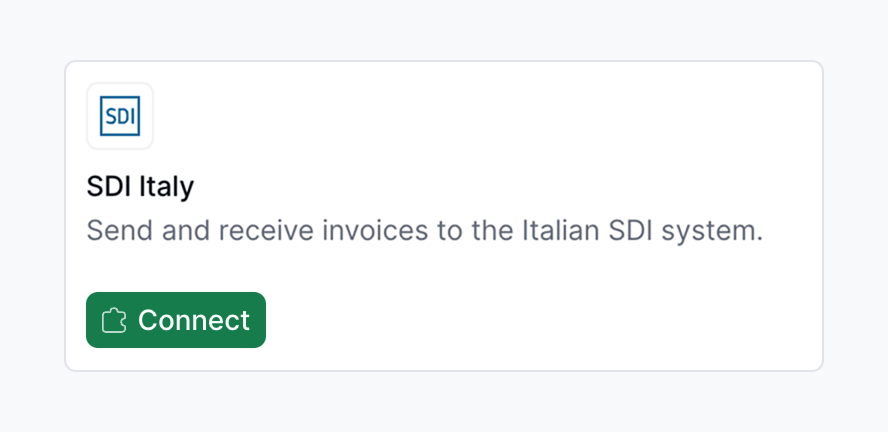
1. Navigate to **Configuration** → **Apps**
2. Locate **SDI Italy** in the app discovery list
3. Tap **Connect** to activate
 Unlike sending, receiving invoices requires additional configuration after the initial connection.
Use this workflow to register a company to receive invoices through SDI.
This workflow registers a company to receive electronic invoices through Italy’s SDI.
Copy and paste into a new [Empty Party workflow](https://console.invopop.com/redirect/workflows/new?template=empty-party) code view.
```json Example SDI supplier registration workflow with states theme={"system"}
{
"name": "SDI register customer",
"description": "Register a company to receive invoices through SDI",
"schema": "org/party",
"steps": [
{
"id": "2a34f560-fd13-11ef-998c-e97f18c9212e",
"name": "Set State",
"provider": "silo.state",
"summary": "Set state to `processing`{.state .processing}",
"config": {
"state": "processing"
}
},
{
"id": "3b5c7890-fd13-11ef-998c-e97f18c9212e",
"name": "Register SDI Customer (Italy)",
"provider": "sdi-it.register",
"summary": "Register company as receiver",
"config": {
"environment": "production"
}
},
{
"id": "4c6d8910-fd13-11ef-998c-e97f18c9212e",
"name": "Set State",
"provider": "silo.state",
"summary": "Set state to `registered`{.state .registered}",
"config": {
"state": "registered"
}
}
],
"rescue": [
{
"id": "5d7e9a20-fd13-11ef-998c-e97f18c9212e",
"name": "Set State",
"provider": "silo.state",
"summary": "Set state to `error`{.state .error}",
"config": {
"state": "error"
}
}
]
}
```
Before starting, review the [workflows guide](/guides/features/workflows) to understand the general setup process.
In [Console](https://console.invopop.com), create a new workflow and choose [Empty Party workflow](https://console.invopop.com/redirect/workflows/new?template=empty-party) as the base. Then name the workflow with a descriptive label such as "SDI Register Supplier".
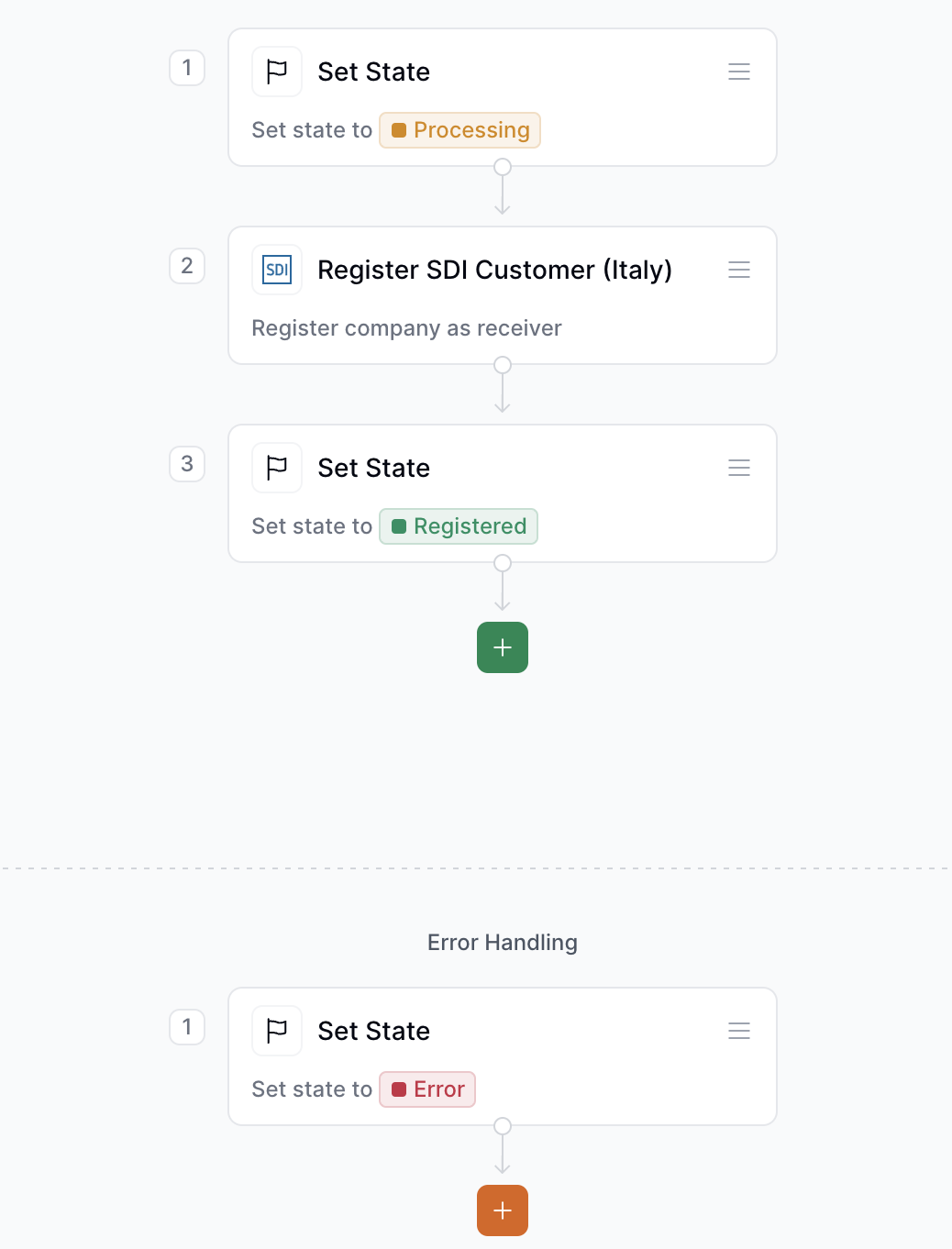
The new workflow will need to perform these steps:
1. **Set State**: Select `"Processing"` to mark the start of the registration.
2. **Register SDI Customer (Italy)**: This step registers the company as an invoice receiver through SDI. Make sure to select the `"Production"` environment to go live.
3. **Set State**: Once the registration is complete, select `"Registered"`.
In the **Error Handling** section, add a **Set State** step and choose `"Error"` to capture any issues during registration.
This minimal workflow is required to onboard a customer for SDI e-invoicing in Italy. You can extend it with notification steps, such as sending confirmation emails or updating external systems when registration succeeds or fails.
Unlike sending, receiving invoices requires additional configuration after the initial connection.
Use this workflow to register a company to receive invoices through SDI.
This workflow registers a company to receive electronic invoices through Italy’s SDI.
Copy and paste into a new [Empty Party workflow](https://console.invopop.com/redirect/workflows/new?template=empty-party) code view.
```json Example SDI supplier registration workflow with states theme={"system"}
{
"name": "SDI register customer",
"description": "Register a company to receive invoices through SDI",
"schema": "org/party",
"steps": [
{
"id": "2a34f560-fd13-11ef-998c-e97f18c9212e",
"name": "Set State",
"provider": "silo.state",
"summary": "Set state to `processing`{.state .processing}",
"config": {
"state": "processing"
}
},
{
"id": "3b5c7890-fd13-11ef-998c-e97f18c9212e",
"name": "Register SDI Customer (Italy)",
"provider": "sdi-it.register",
"summary": "Register company as receiver",
"config": {
"environment": "production"
}
},
{
"id": "4c6d8910-fd13-11ef-998c-e97f18c9212e",
"name": "Set State",
"provider": "silo.state",
"summary": "Set state to `registered`{.state .registered}",
"config": {
"state": "registered"
}
}
],
"rescue": [
{
"id": "5d7e9a20-fd13-11ef-998c-e97f18c9212e",
"name": "Set State",
"provider": "silo.state",
"summary": "Set state to `error`{.state .error}",
"config": {
"state": "error"
}
}
]
}
```
Before starting, review the [workflows guide](/guides/features/workflows) to understand the general setup process.
In [Console](https://console.invopop.com), create a new workflow and choose [Empty Party workflow](https://console.invopop.com/redirect/workflows/new?template=empty-party) as the base. Then name the workflow with a descriptive label such as "SDI Register Supplier".
The new workflow will need to perform these steps:
1. **Set State**: Select `"Processing"` to mark the start of the registration.
2. **Register SDI Customer (Italy)**: This step registers the company as an invoice receiver through SDI. Make sure to select the `"Production"` environment to go live.
3. **Set State**: Once the registration is complete, select `"Registered"`.
In the **Error Handling** section, add a **Set State** step and choose `"Error"` to capture any issues during registration.
This minimal workflow is required to onboard a customer for SDI e-invoicing in Italy. You can extend it with notification steps, such as sending confirmation emails or updating external systems when registration succeeds or fails.
 Use this workflow to import and process invoices received through SDI. This workflow must be selected in the SDI Italy app configuration to automatically process incoming invoices.
This workflow will convert received FatturaPA documents into our open source GOBL format.
Copy and paste into a new [Empty Invoice workflow](https://console.invopop.com/redirect/workflows/new?template=empty-invoice) code view.
```json Example SDI import invoice workflow with states theme={"system"}
{
"name": "Import SDI Invoices",
"description": "Import and process invoices received through SDI",
"schema": "bill/invoice",
"steps": [
{
"id": "6e8f0b30-fd13-11ef-998c-e97f18c9212e",
"name": "Import from SDI (Italy)",
"provider": "sdi-it.import",
"summary": "Convert received FatturaPA to GOBL",
"config": {
"environment": "production"
}
},
{
"id": "7f9a1c40-fd13-11ef-998c-e97f18c9212e",
"name": "Generate PDF",
"provider": "pdf",
"summary": "Italian",
"config": {
"date_format": "%Y-%m-%d",
"locale": "it",
"logo_height": 40
}
},
{
"id": "8a0b2d50-fd13-11ef-998c-e97f18c9212e",
"name": "Set State",
"provider": "silo.state",
"summary": "Set state to `sent`{.state .sent}",
"config": {
"state": "sent"
}
}
],
"rescue": [
{
"id": "9b1c3e60-fd13-11ef-998c-e97f18c9212e",
"name": "Set State",
"provider": "silo.state",
"summary": "Set state to `error`{.state .error}",
"config": {
"state": "error"
}
}
]
}
```
This workflow automates the import and processing of incoming invoices via Italy’s SDI (Sistema di Interscambio).
Before starting, review the [workflows guide](/guides/features/workflows) to understand the general setup process.
In [Console](https://console.invopop.com), create a new workflow and choose [Empty Invoice workflow](https://console.invopop.com/redirect/workflows/new?template=empty-invoice) as the base. Then add the following steps:
1. **Import from SDI (Italy)**: Retrieves invoices in the FatturaPA format from SDI and converts them into GOBL. Set the environment to `"Production"` for real operations.
2. **Generate PDF**: Generates a visual representation of the invoice in Italian, using the specified locale (`"it"`), date format (`%Y-%m-%d`), and logo height (40px).
3. **Set State**: Marks the invoice as `"Sent"` once it's successfully processed.
In the **Error Handling** section, add a **Set State** step with the state set to `"Error"` to capture and flag failed imports.
This is the minimal workflow required to automate the reception and visualization of invoices received through SDI. You may expand it with additional steps such as storing a backup copy, notifying clients, or integrating the documents into an ERP system.
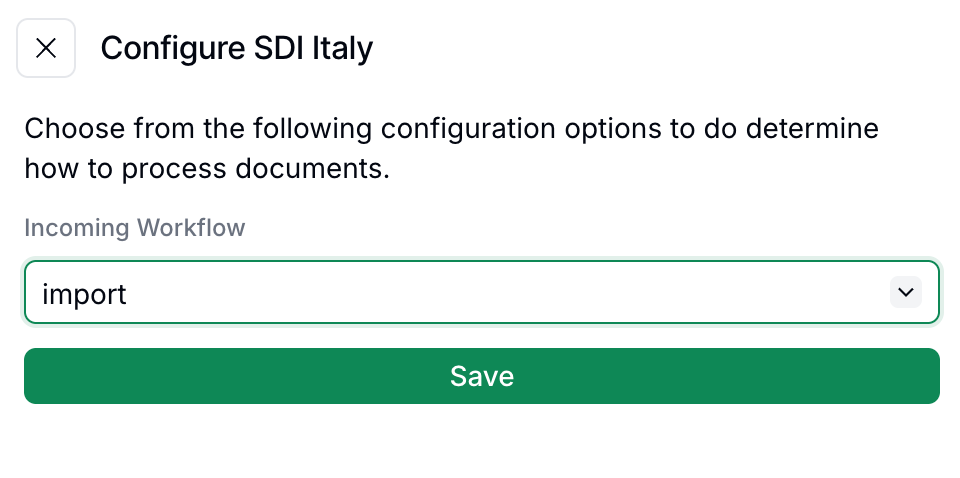
To start processing incoming invoices navigate to **Configuration** → **Apps**, find the **SDI Italy** app and tap **Configure** and select the appropriate **Import Invoices** workflow
Use this workflow to import and process invoices received through SDI. This workflow must be selected in the SDI Italy app configuration to automatically process incoming invoices.
This workflow will convert received FatturaPA documents into our open source GOBL format.
Copy and paste into a new [Empty Invoice workflow](https://console.invopop.com/redirect/workflows/new?template=empty-invoice) code view.
```json Example SDI import invoice workflow with states theme={"system"}
{
"name": "Import SDI Invoices",
"description": "Import and process invoices received through SDI",
"schema": "bill/invoice",
"steps": [
{
"id": "6e8f0b30-fd13-11ef-998c-e97f18c9212e",
"name": "Import from SDI (Italy)",
"provider": "sdi-it.import",
"summary": "Convert received FatturaPA to GOBL",
"config": {
"environment": "production"
}
},
{
"id": "7f9a1c40-fd13-11ef-998c-e97f18c9212e",
"name": "Generate PDF",
"provider": "pdf",
"summary": "Italian",
"config": {
"date_format": "%Y-%m-%d",
"locale": "it",
"logo_height": 40
}
},
{
"id": "8a0b2d50-fd13-11ef-998c-e97f18c9212e",
"name": "Set State",
"provider": "silo.state",
"summary": "Set state to `sent`{.state .sent}",
"config": {
"state": "sent"
}
}
],
"rescue": [
{
"id": "9b1c3e60-fd13-11ef-998c-e97f18c9212e",
"name": "Set State",
"provider": "silo.state",
"summary": "Set state to `error`{.state .error}",
"config": {
"state": "error"
}
}
]
}
```
This workflow automates the import and processing of incoming invoices via Italy’s SDI (Sistema di Interscambio).
Before starting, review the [workflows guide](/guides/features/workflows) to understand the general setup process.
In [Console](https://console.invopop.com), create a new workflow and choose [Empty Invoice workflow](https://console.invopop.com/redirect/workflows/new?template=empty-invoice) as the base. Then add the following steps:
1. **Import from SDI (Italy)**: Retrieves invoices in the FatturaPA format from SDI and converts them into GOBL. Set the environment to `"Production"` for real operations.
2. **Generate PDF**: Generates a visual representation of the invoice in Italian, using the specified locale (`"it"`), date format (`%Y-%m-%d`), and logo height (40px).
3. **Set State**: Marks the invoice as `"Sent"` once it's successfully processed.
In the **Error Handling** section, add a **Set State** step with the state set to `"Error"` to capture and flag failed imports.
This is the minimal workflow required to automate the reception and visualization of invoices received through SDI. You may expand it with additional steps such as storing a backup copy, notifying clients, or integrating the documents into an ERP system.
To start processing incoming invoices navigate to **Configuration** → **Apps**, find the **SDI Italy** app and tap **Configure** and select the appropriate **Import Invoices** workflow
 This workflow will automatically trigger whenever a new invoice is received through SDI. Any errors in the import process will trigger the rescue steps in the workflow, allowing identification and resolution of issues.
You must register the Recipient Code (Codice Destinatario) for each company you want to receive invoices.
1. Access the [Italian tax authority's website](https://ivaservizi.agenziaentrate.gov.it/portale/) and log in with valid credentials for the company being registered.
This workflow will automatically trigger whenever a new invoice is received through SDI. Any errors in the import process will trigger the rescue steps in the workflow, allowing identification and resolution of issues.
You must register the Recipient Code (Codice Destinatario) for each company you want to receive invoices.
1. Access the [Italian tax authority's website](https://ivaservizi.agenziaentrate.gov.it/portale/) and log in with valid credentials for the company being registered.
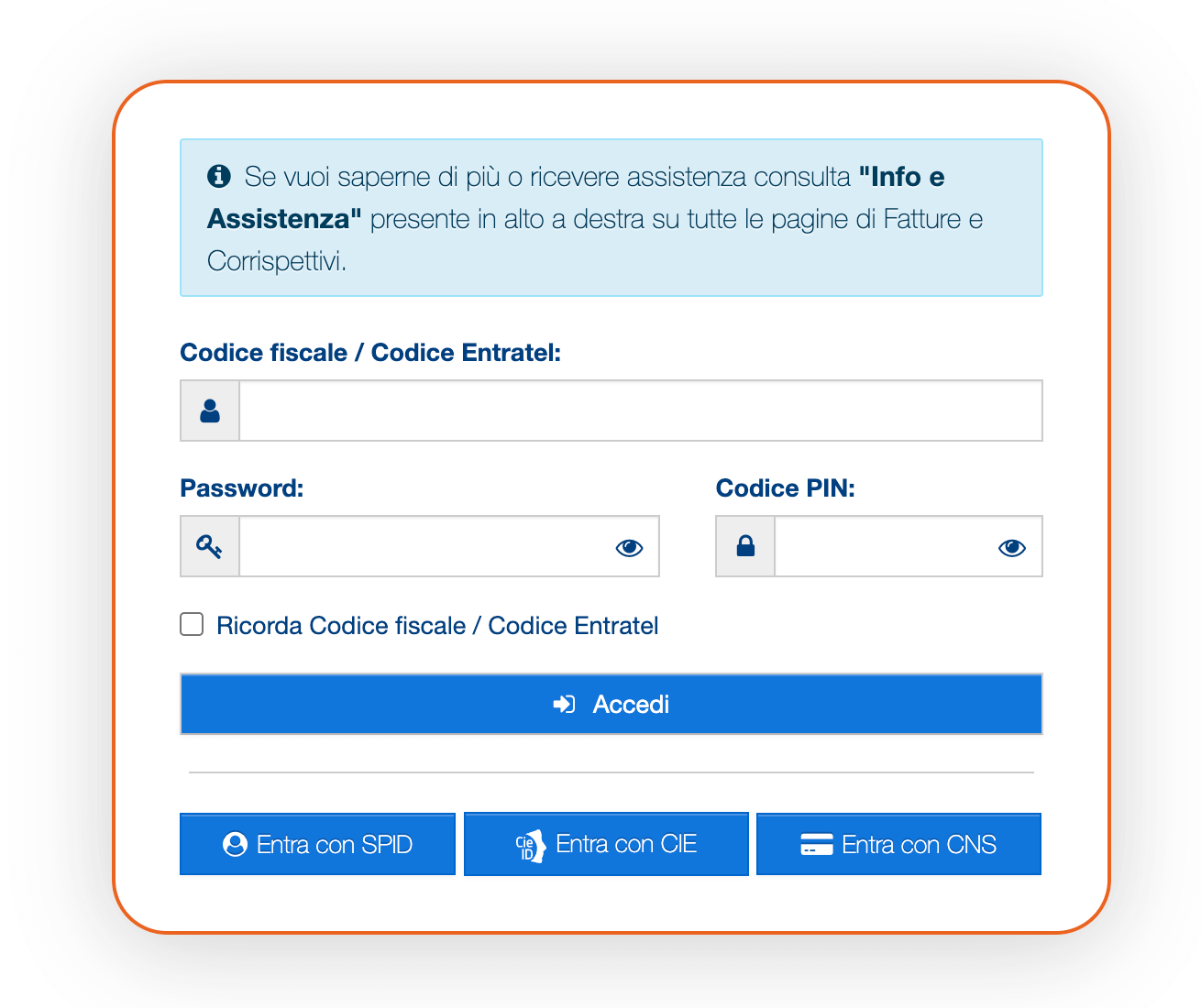 2. Tap on the **Fatture e Corrispettivi** section.
3. In the box **Fatturazione elettronica**, tap on **Registrazione delle modalità di ricezione della fattura elettronica**.
4. Select the Recipient Code (Codice Destinatario) option and enter the code `JKKZDGR` provided by Invopop
5. Tap on **Conferma**
After completing this registration with the tax authority, execute the Customer Registration workflow in Invopop to complete the setup for that company.
Both steps must be completed for each company
1. Register the *Codice Destinatario* `JKKZDGR` with the Italian tax authority for that company
2. Run the Customer Registration workflow for that company in Invopop
Registration is only required for receiving invoices, not for sending them.
## Receiving Invoices
Invopop uses the [GOBL FatturaPA](https://github.com/invopop/gobl.fatturapa) library to process conversions, automatically converting received FatturaPA XML documents into GOBL format.
Detailed information about the SDI-specific extensions and validations can be found in:
* [Italy SDI FatturaPA v1.x Addon Documentation](https://docs.gobl.org/addons/it-sdi-v1)
* [Italy Tax Regime Documentation](https://docs.gobl.org/regimes/it)
### How the process works
Register the Recipient Code `JKKZDGR` with the Italian tax authority for each company that needs to receive invoices, as outlined in the setup steps.
Run this workflow for each company that needs to receive invoices. This registers the company's tax ID with our SDI integration partner to subscribe to invoice events for that organization.
Select the Import Invoices workflow in the SDI Italy app configuration to automatically process incoming invoices.
Once registered, any invoices addressed to the registered companies with the Recipient Code will be automatically received and processed through the Import Invoices workflow configured in the app settings.
The import process uses the open-source library [gobl.fatturapa](https://github.com/invopop/gobl.fatturapa) to convert FatturaPA documents into GOBL format, making them accessible within the Invopop workspace like any other document.
If errors occur during the import process, they will trigger the rescue steps in the workflow, allowing users to check what went wrong and take appropriate action.
## FAQ
Yes, electronic invoicing through SDI is mandatory in Italy for B2G, B2B, and B2C transactions.
All invoices must be issued in FatturaPA format and transmitted through the SDI (Sistema di Interscambio) platform.
If an invoice received through SDI contains errors:
1. The import process will still attempt to convert it to GOBL format
2. Any validation errors will be logged, and the rescue steps in your workflow will be triggered
3. You can review the errors and decide how to handle the invoice
If the invoice has significant structural issues that prevent conversion, you may need to contact the sender to request a corrected invoice.
Invoices are typically received within minutes after being sent by suppliers through SDI. The automatic import process in Invopop processes them as soon as they are received by our system.
Yes, multiple companies can be registered to receive invoices through a single Invopop workspace. For each company, you must:
1. Register the Recipient Code `JKKZDGR` with the Italian tax authority for that specific company
2. Have its tax ID registered using the Customer Registration workflow in Invopop
3. Use the same Import Invoices workflow configured in the app settings
This two-step registration process (with the tax authority and with Invopop) must be completed for each company you want to register. This is particularly useful for white-labeling scenarios where a user manages multiple entities.
No, sending and receiving invoices require different workflows:
* For sending invoices, a workflow with the Generate FatturaPA and Send to SDI steps is needed
* For receiving invoices, two workflows are required:
1. A Customer Registration workflow (run once for each company that needs to receive invoices)
2. An Import Invoices workflow (configured to run automatically)
For more information on sending invoices, see our [Italy - SDI: Sending Invoices](/guides/countries/it-sdi-sending) guide.
The two-step registration process serves different purposes:
1. **Registering with the Italian tax authority** - Tells SDI to route invoices addressed to your company to Invopop's system using the *Codice Destinatario* `JKKZDGR`.
2. **Registering with Invopop** (Customer Registration workflow) - Tells Invopop's system which invoices to accept and process for your workspace.
Both steps are necessary: the first routes the invoices to Invopop, and the second ensures Invopop knows which workspace should receive those invoices.
2. Tap on the **Fatture e Corrispettivi** section.
3. In the box **Fatturazione elettronica**, tap on **Registrazione delle modalità di ricezione della fattura elettronica**.
4. Select the Recipient Code (Codice Destinatario) option and enter the code `JKKZDGR` provided by Invopop
5. Tap on **Conferma**
After completing this registration with the tax authority, execute the Customer Registration workflow in Invopop to complete the setup for that company.
Both steps must be completed for each company
1. Register the *Codice Destinatario* `JKKZDGR` with the Italian tax authority for that company
2. Run the Customer Registration workflow for that company in Invopop
Registration is only required for receiving invoices, not for sending them.
## Receiving Invoices
Invopop uses the [GOBL FatturaPA](https://github.com/invopop/gobl.fatturapa) library to process conversions, automatically converting received FatturaPA XML documents into GOBL format.
Detailed information about the SDI-specific extensions and validations can be found in:
* [Italy SDI FatturaPA v1.x Addon Documentation](https://docs.gobl.org/addons/it-sdi-v1)
* [Italy Tax Regime Documentation](https://docs.gobl.org/regimes/it)
### How the process works
Register the Recipient Code `JKKZDGR` with the Italian tax authority for each company that needs to receive invoices, as outlined in the setup steps.
Run this workflow for each company that needs to receive invoices. This registers the company's tax ID with our SDI integration partner to subscribe to invoice events for that organization.
Select the Import Invoices workflow in the SDI Italy app configuration to automatically process incoming invoices.
Once registered, any invoices addressed to the registered companies with the Recipient Code will be automatically received and processed through the Import Invoices workflow configured in the app settings.
The import process uses the open-source library [gobl.fatturapa](https://github.com/invopop/gobl.fatturapa) to convert FatturaPA documents into GOBL format, making them accessible within the Invopop workspace like any other document.
If errors occur during the import process, they will trigger the rescue steps in the workflow, allowing users to check what went wrong and take appropriate action.
## FAQ
Yes, electronic invoicing through SDI is mandatory in Italy for B2G, B2B, and B2C transactions.
All invoices must be issued in FatturaPA format and transmitted through the SDI (Sistema di Interscambio) platform.
If an invoice received through SDI contains errors:
1. The import process will still attempt to convert it to GOBL format
2. Any validation errors will be logged, and the rescue steps in your workflow will be triggered
3. You can review the errors and decide how to handle the invoice
If the invoice has significant structural issues that prevent conversion, you may need to contact the sender to request a corrected invoice.
Invoices are typically received within minutes after being sent by suppliers through SDI. The automatic import process in Invopop processes them as soon as they are received by our system.
Yes, multiple companies can be registered to receive invoices through a single Invopop workspace. For each company, you must:
1. Register the Recipient Code `JKKZDGR` with the Italian tax authority for that specific company
2. Have its tax ID registered using the Customer Registration workflow in Invopop
3. Use the same Import Invoices workflow configured in the app settings
This two-step registration process (with the tax authority and with Invopop) must be completed for each company you want to register. This is particularly useful for white-labeling scenarios where a user manages multiple entities.
No, sending and receiving invoices require different workflows:
* For sending invoices, a workflow with the Generate FatturaPA and Send to SDI steps is needed
* For receiving invoices, two workflows are required:
1. A Customer Registration workflow (run once for each company that needs to receive invoices)
2. An Import Invoices workflow (configured to run automatically)
For more information on sending invoices, see our [Italy - SDI: Sending Invoices](/guides/countries/it-sdi-sending) guide.
The two-step registration process serves different purposes:
1. **Registering with the Italian tax authority** - Tells SDI to route invoices addressed to your company to Invopop's system using the *Codice Destinatario* `JKKZDGR`.
2. **Registering with Invopop** (Customer Registration workflow) - Tells Invopop's system which invoices to accept and process for your workspace.
Both steps are necessary: the first routes the invoices to Invopop, and the second ensures Invopop knows which workspace should receive those invoices.